
Search Knowledge Base by Keyword
-
Overview
-
- altFINS Platform Features - Your All-in-One Crypto Trading Tool
- Why use altFINS?
- Registered user benefits
- What kind of trader are you?
- How to trade cryptocurrencies?
- How to Trend Trade Crypto
- Trading Risk Management
- What Makes altFINS One of the Best Crypto Screeners in 2025?
- What Kind Of Crypto Trading Signals Are on altFINS?
-
-
Crypto Analytics
-
- Why use it?
- Overview > Charts > Scorecards > Performance > Trend > Oscillators
- Add table columns
- Detail view
- Charts
- Create a Trading Signal or Filter
- Find SMA crossover signals
- Crypto Time Intervals
- Crypto Alerts on altFINS: The Complete 2026 Guide to Price, Filter, and Pattern Alerts
- Extreme Overbought coins Due for a Pullback
- Early momentum detection
- Crypto Trend Changes
- Why And How Use altFINS Crypto Screener
- Mastering Candlestick Patterns for Successful Crypto Trading
- Fibonacci Retracement Levels: The Complete Crypto Trading Guide (2026)
- Essential Candlestick Patterns for Crypto Traders
- Using Local High to Spot Breakouts
- Oversold in Uptrend
- Strong Uptrend
- The Hammer Candlestick Pattern: How to Identify and Trade It
- The Inverted Hammer Candlestick Pattern
- The Hanging Man Candlestick Pattern
- The Spinning Top Candlestick Pattern
- The Dragonfly Doji Candlestick Pattern: Complete Trading Guide (2026)
- What is "My Data" Option on altFINS?
- The Relative Volume (RVOL) Indicator
- New Local High
- New Local Low
- Buying Coins at an All-Time-High (ATH)
- Bullish Engulfing Candlestick Pattern: A Comprehensive Guide
- The Gravestone Doji and Perfect Gravestone Doji Candlestick Patterns
- Support and Resistance Crypto: The Complete 2026 Guide for Traders
- What Makes altFINS One of the Best Crypto Screeners in 2025?
- Crypto Volume Tracker: Spot Unusual Volume and Momentum with altFINS
- Crypto Fundamental Data On altFINS: Identifying Projects with Real Traction
- What is ATR Indicator and How to Find It on altFINS?
- Combining fundamentals with TA
- Trading RSI and RSI Divergence
- What Is the 200-Day Simple Moving Average and How to Find It on altFINS
- 11 Best Crypto Screeners in 2026: Comparison, Pricing & Features
- The Complete Guide to altFINS Preset Screener Filters
- altFINS AI Trade Setup: Analyze 2,000 Coins in Seconds
- Crypto Charts on altFINS: The Complete Guide to the Defined Chart (2026)
- Top 100 Crypto in 2026: How to Find the Best Coins in the Top 100 (Live altFINS Data)
- Tokenized Stocks and RWA in 2026: Track and Scan 200+ Tokenized Equities on altFINS
- Best Tokenized Stocks Screener in 2026: Scan 200+ Tokenized Equities With altFINS
- Trading Tokenized Stocks: How to Find, Analyze, and Trade Them (Full Tutorial)
- The Shooting Star Candlestick Pattern: A Crypto Trader's Guide
- Golden Cross and Death Cross in Crypto: How to Trade Moving Average Crossovers
- How to Use Bollinger Bands in Crypto Trading (2026 Guide)
- Double Top and Double Bottom Chart Patterns in Trading
- Hidden Divergence in Crypto Trading: How to Spot Trend Continuation Signals
- The Morning Star Candlestick Pattern in Crypto Trading
- RSI vs MACD: Which One Wins for Crypto Trading?
- Bearish Engulfing Candle: How to Spot and Trade It in Crypto
- Show all articles ( 40 ) Collapse Articles
-
- Overview
- Emerging v. Complete
- Mastering Key Levels in Crypto Trading: The Ultimate Guide
- Consecutive Candles
- Big Movement in Trading: Understanding and Trading the Volatility
- Fibonacci Patterns
- 10 steps for how to trade crypto using Crypto Chart Patterns
- How to trade Channel Down? | Crypto Chart Pattern
- Tutorial: Using Custom Chart Pattern Filters
- How To Set Up Chart Patterns Alerts?
- How To Trade Channel Up Pattern? | Crypto Chart Pattern
- How To Trade Ascending Triangles? | Crypto Chart Pattern
- How To Trade Bullish Flag Pattern? | Crypto Chart Pattern
- How To Trade Sideways Channel pattern? | Crypto Chart Pattern
- How To Trade Rising Wedge pattern? | Crypto Chart Pattern
- How To Trade Falling Wedge pattern? | Crypto Chart Pattern
- How To Trade Descending Triangle pattern? | Crypto Chart Pattern
- How To Trade Inverse Head and Shoulders pattern? | Crypto Chart Pattern
- What is "My Data" Option on altFINS?
- How To Trade Symmetrical Triangle Pattern? | Crypto Chart Pattern
- Crypto Chart Patterns Cheat Sheet
- How Does AI Help with Crypto Trading?
- Crypto Chart Patterns: The Complete 2026 Guide to 26 AI-Detected Patterns
- Best Automated Crypto Chart Pattern Recognition Platforms in 2026: The Ultimate Comparison
- Trading Patterns Explained: The Complete 2026 Guide to Reading Price Charts
- Double Top and Double Bottom Chart Patterns in Trading
- Evening Star Candlestick Pattern: How to Trade It in Crypto (2026)
- Cup and Handle Pattern: How to Identify and Trade It in Crypto (2026)
- Show all articles ( 13 ) Collapse Articles
-
- Technical Analysis in Crypto: Trade Setups, Hot Setups, and How They Differ From AI Trade Setups
- Fibonacci Retracement Levels: The Complete Crypto Trading Guide (2026)
- How To Trade Sideways Channel pattern? | Crypto Chart Pattern
- Technical Analysis Alerts
- Support and Resistance Crypto: The Complete 2026 Guide for Traders
- 8 AI-Powered Trade Strategy Prompts Using altFINS MCP
- Crypto Charts on altFINS: The Complete Guide to the Defined Chart (2026)
-
- Signals Summary Overview
- How To Find And Trade Crypto Pullbacks In Uptrend (Buying Dips)?
- Momentum & Up / Down Trend
- Range in Up/Down Trend
- Momentum
- How to trade EMA 12 / 50 crossovers?
- Moving Average Ribbons
- Strong Up / Down Trend
- Strong Up / Down Trend (Short Term)
- Strong Up / Down Trend (Medium Term)
- Strong Up / Down Trend (Long Term)
- Price / SMA Crossovers In Crypto
- What are Price / EMA Crossovers in crypto?
- SMA Crossovers
- EMA Crossovers
- Crypto Unusual Volume Gainers / Decliners
- New Up/Down trend (ADX)
- Bollinger Band - Price Broke Upper / Lower Band
- Strong Up / Down Trend and Oversold / Overbought
- Strong Up / Down Trend and Strong / Weak Ultimate Oscillator
- MACD (12,27,9) Signal Line cross
- MACD (12,27,9) Center Line cross
- Commodity Channel Index cross
- Overall Score of Oscillators (Oversold / Overbought)
- Relative Strength Index (9)
- Relative Strength Index (14)
- Relative Strength Index (25)
- Stochastic RSI (3, 3, 14, 14)
- Williams Percent Range (14)
- Bull Power
- MACD line
- Relative Strength Index (RSI) Divergence: Explained
- How to Trend Trade Crypto
- Early momentum detection
- Short-Medium-Long-Term Trend
- Relative Strength Index
- Uptrend and Fresh Bullish Momentum Inflection
- Using Local High to Spot Breakouts
- Oversold in Uptrend
- Strong Uptrend
- The Hammer Candlestick Pattern: How to Identify and Trade It
- The Inverted Hammer Candlestick Pattern
- The Hanging Man Candlestick Pattern
- The Spinning Top Candlestick Pattern
- The Dragonfly Doji Candlestick Pattern: Complete Trading Guide (2026)
- What is "My Data" Option on altFINS?
- The Relative Volume (RVOL) Indicator
- New Local High
- New Local Low
- Bullish Engulfing Candlestick Pattern: A Comprehensive Guide
- The Gravestone Doji and Perfect Gravestone Doji Candlestick Patterns
- Three White Soldiers Candlestick Pattern: A Comprehensive Guide
- How Does AI Help with Crypto Trading?
- What Kind Of Crypto Trading Signals Are on altFINS?
- Trading RSI and RSI Divergence
- The Complete Guide to altFINS Preset Screener Filters
- The Shooting Star Candlestick Pattern: A Crypto Trader's Guide
- Bearish Engulfing Candle: How to Spot and Trade It in Crypto
- Three Black Crows Candlestick Pattern: How to Trade It in Crypto and Stocks (2026)
- Show all articles ( 44 ) Collapse Articles
-
- Volume
- OBV Divergence Indicator
- SMA vs EMA: Which Moving Average Is Better for Crypto Trading?
- Trading RSI and RSI Divergence
- Stochastic (14, 3, 3) (STOCH)
- What is CCI 20? (Commodity Channel Index 20)
- ADX
- MACD Indicator Explained: MACD Line, Signal Line & Histogram (Complete 2026 Guide)
- Williams %R
- Stochastic RSI Fast
- Bull / Bear Power
- What is the UO: Ultimate Oscillator (7, 14, 28)
- Short Term Trend
- Medium Term Trend
- Long Term Trend
- Oscillator Rating
- Trading Multiple Time Frames
- Support and Resistance Crypto: The Complete 2026 Guide for Traders
- Polarity principle
- Early momentum detection
- Crypto Trend Changes
- MACD Histogram (H1, H2)
- Fibonacci Retracement Levels: The Complete Crypto Trading Guide (2026)
- Using Local High to Spot Breakouts
- Oversold in Uptrend
- Strong Uptrend
- The Relative Volume (RVOL) Indicator
- New Local High
- Buying Coins at an All-Time-High (ATH)
- Crypto Volume Tracker: Spot Unusual Volume and Momentum with altFINS
- What is ATR Indicator and How to Find It on altFINS?
- Combining fundamentals with TA
- What Is the 200-Day Simple Moving Average and How to Find It on altFINS
- The Complete Guide to altFINS Preset Screener Filters
- Hidden Divergence in Crypto Trading: How to Spot Trend Continuation Signals
- RSI vs MACD: Which One Wins for Crypto Trading?
- What Is VWAP? How to Use the VWAP Indicator in Crypto Trading (2026)
- Show all articles ( 22 ) Collapse Articles
-
- Crypto Alerts on altFINS: The Complete 2026 Guide to Price, Filter, and Pattern Alerts
- Extreme Overbought coins Due for a Pullback
- Simple price alerts
- How To Set Up Chart Patterns Alerts?
- Push Alerts Notifications on Mobile App
- Watchlist and Portfolio Alerts
- Technical Analysis Alerts
- Crypto Alerts on altFINS: A Comprehensive Guide
- Crypto Portfolio Tracker
- How To Trade Symmetrical Triangle Pattern? | Crypto Chart Pattern
- New Local High
- New Local Low
- Three White Soldiers Candlestick Pattern: A Comprehensive Guide
- Crypto Volume Tracker: Spot Unusual Volume and Momentum with altFINS
- What is ATR Indicator and How to Find It on altFINS?
- What Is the 200-Day Simple Moving Average and How to Find It on altFINS
- Crypto Breakouts Explained: How to Spot Winning Trades with altFINS
- Getting Started with altFINS! Your Complete Step-by-Step Guide to Crypto Trading Success
- 11 Best Crypto Screeners in 2026: Comparison, Pricing & Features
-
-
Trade Crypto
-
- Initiating a trade
- Market vs. Limit order
- Refreshing tables
- Are derivatives such as futures, options and perpetual swaps supported?
- Does altFINS charge trading fees?
- Balances
- Open Orders
- Transaction History
- Orderbook in Crypto: How to Read It, Spot Liquidity, and Trade Smarter (2026 Guide)
- Connecting to Exchanges on altFINS Terminal
- How to trade cryptocurrencies?
- Trading Risk Management
- Crypto Portfolio Tracker
- Connect To Bitget
- Connect to Coinbase
-
-
Research Hub
-
Crypto Education
-
- Where To Buy And Sell Cryptocurrency?
- When Is The Best Time To Buy And Sell Cryptocurrency?
- Crypto Profits: Full Guide How to Take Profits In Cryptocurrency
- What Is Crypto Copy Trading?
- What Is Leverage Trading Cryptocurrency?
- Crypto Arbitrage Trading: Meaning, Signals And Opportunities
- Crypto Hot Wallet vs. Cold Wallet: What is the Difference
- Crypto Trading Strategies
- Difference Between Crypto Fundamental and Technical Analysis
- Best Decentralized Exchanges in 2026: Complete Ranking by Volume, Fees & Features
- What is a Crypto Prop Trading? A Complete Guide to Crypto Proprietary Trading Firms
- The Best Crypto Prop Trading Firms
- Altrady Review: How To Achieve Optimal Trade Execution
- Crypto AI Agents Explained: Top 10 AI Agent Cryptos by Market Cap to Watch in 2025
- The Ultimate Guide to Smart Money Whales in Crypto
- The Ultimate Guide to Cryptocurrency ETFs in 2025
- How to Control Your Emotions While Trading Crypto (and How altFINS Can Help)
- HyroTrader Review: A Comprehensive Analysis
- Best Crypto Trading Bots in 2025: Coinrule vs Cryptohopper vs 3Commas
- How to Automate Your Crypto Trading with Coinrule
- OneFunded Review: Pros & Cons Revealed
- The Market's X-Ray: Liquidation Heatmaps
- Can Quantum Computers Break Bitcoin? | 2026 Google Research
- CoinEx Exchange Review 2026: Features, Fees, Security & What You Should Know Before Trading
- Hyperliquid ($HYPE) Price: The On-Chain Derivatives Powerhouse Eyeing $50
- Crypto Exchange Comparison 2026: CoinEx vs MEXC vs BYDFi vs Phemex vs Margex
- Best Crypto Prop Trading Firms in 2026: The Ultimate Comparison Guide
- Best Crypto Portfolio Trackers 2026: altFINS, CoinStats & 3 More Compared
- RebelsFunding Review 2026: The No-Time-Limit Prop Firm Built for Patient Traders
- LBank Review 2026: The Complete Guide to Fees, Security, Features & Trust
- Crypto Signals on Telegram in 2026 – Complete Guide With altFINS Examples
- MiCA 2026: The July 1 Deadline Every EU Crypto Firm Must Prepare For
- 10 Best Crypto Telegram Signals Groups in 2026: Ranked and Compared
- Best Crypto Discord Servers for Trading Signals in 2026 (Ranked & Reviewed)
- Best Crypto Trading Courses for Learning Technical Analysis in 2026 (Ranked & Reviewed)
- Prediction Markets Explained: The Complete 2026 Guide for Crypto Traders
- Best Crypto Hardware Wallets 2026
- Best Crypto Liquidity Providers in 2026: Comparison, Coverage & Pricing
- Best Self-Custody Solutions in 2026: One Pick Per Job
- Best Crypto Communities to Join in 2026: Ranked for Signals, Analysis and Learning
- 5 Best RPC Providers for Production Web3 Apps in 2026
- Trading Tokenized Stocks: How to Find, Analyze, and Trade Them (Full Tutorial)
- CoinMarketCap API Review (2026): Features, Pricing, Setup Guide, and Honest Pros & Cons
- Best Crypto APIs in 2026: An In-Depth Comparison of 6 Leading Data Providers
- Fair Value Gap (FVG) Explained: How to Spot and Trade Imbalances in Crypto
- Golden Cross and Death Cross in Crypto: How to Trade Moving Average Crossovers
- altFINS vs TradingView MCP, Full 2026 Comparison
- How to Read Stock Charts: A Beginner's Guide for 2026
- Show all articles ( 33 ) Collapse Articles
-
-
About
-
AI Features
- 🚀 Meet altFINS AI Copilot: Your Smart Crypto Trading Assistant
- Getting Started with altFINS! Your Complete Step-by-Step Guide to Crypto Trading Success
- altFINS AI Trade Setup: Analyze 2,000 Coins in Seconds
- Using AI to Sharpen Your Trading Edge
- Best AI Trading Tools in 2026: The Complete Ranked Guide
- 10 Best AI Prompts for Crypto Trading in 2026 (altFINS MCP, Tested Live)
- altFINS AI Copilot Guide: How to Use an AI Crypto Screener With Real Prompts (2026)
-
altFINS API
- What Is the altFINS Analytics Data API?
- Who Is the altFINS Data API For?
- Real-World Use Cases of the altFINS API
- altFINS Crypto Market & Analytical Data API
- How to Create an altFINS API Key (Step-by-Step Guide)
- The Ultimate Guide to Cryptocurrency MCP Servers in 2026: Complete Comparison for Traders, Developers & Trading Platforms
- 11 Best Crypto APIs for 2026: Comparison, Pricing & Features
- How to Connect altFINS MCP to Claude Desktop
- 8 AI-Powered Trade Strategy Prompts Using altFINS MCP
- altFINS CLI: The Complete Guide To Crypto CLI
- Find Trade Ideas | Prompts Using altFINS MCP And AI
- How to Use altFINS AI Skills with OpenAI Codex
- The Complete Guide to altFINS MCP Crypto Trading Prompts
- The Trinity Moment: When a Local AI Model, altFINS CLI, and an M1 Max Started Working Like One Tool
- altFINS Preset Filters + MCP: Find Crypto Trade Opportunities in Plain English
- What Is a Crypto API & How to Use One: 2026 Tutorial
- How to Connect altFINS MCP to Perplexity PRO
- Top 10 Winners of the altFINS API Challenge 2026: The Best Crypto Apps Built on altFINS API, MCP & CLI
- Best Free Crypto API in 2026: 9 No-Cost Options Compared
- How to Build a Live Multi-Timeframe RSI Crypto Screener with Claude Code and the altFINS API (2026 Guide)
- How to Build a Crypto Trading App with Gemini Canvas and the altFINS API (2026 Guide)
- 5 altFINS Trading MCP Prompts to Find Setups With Claude (2026)
- 10 Best AI Prompts for Crypto Trading in 2026 (altFINS MCP, Tested Live)
- When to Sell Crypto: 4 AI Prompts to Exit, Trim, Cut or Hold (Tested Live, 2026)
- Show all articles ( 9 ) Collapse Articles
-
Stocks Trading
- How to Read Stock Charts: A Beginner's Guide for 2026
- Momentum Stocks: How to Find and Trade Them in 2026
- 52-Week High Stocks: How to Find and Trade New Highs in 2026
- Oversold Stocks: What They Are and How to Find Them in 2026
- Golden Cross Stocks: How to Find and Trade Them in 2026
- Stock Screener for Free: The 7 Best Free Stock Screeners in 2026
- Day Trading Stock Scanner: The 5 Scans Day Traders Use in 2026
- Stock Screener for Penny Stocks: How to Find Low-Priced Stocks Safely in 2026
- Stocks Near 52-Week Low: Bargains or Value Traps? (2026 Guide)
- Death Cross Stocks: What the Signal Means and How to Trade It in 2026
- Breakout Stocks: How to Find and Trade Stock Breakouts in 2026
How to Connect altFINS MCP to Perplexity PRO
What You’ll Need
- Perplexity PRO or MAX plan
- An altFINS account — sign up at altfins.com and create an API Key
For MAC
-
Open the Perplexity Mac app and sign in with your Pro / Max account.
-
Go to Settings → Connectors and install the PerplexityXPC Helper if the app asks you to.
-
Click + Custom connector and choose Remote.
-
Fill in the form:
-
Name:
altFINS -
MCP Server URL: your altFINS MCP URL: https://mcp.altfins.com/mcp
-
Authentication: select API Key and paste the user’s altFINS API key into the key field
-
Transport: select the option your backend supports (usually SSE or Streamable HTTP)
-
-
Click Add, then click the new altFINS connector in the list to finish any auth confirmation and make sure its status is Enabled/Connected.
-
Back in the main chat, open Sources and toggle altFINS on before asking questions that should use altFINS data.
For Windows, follow these steps:
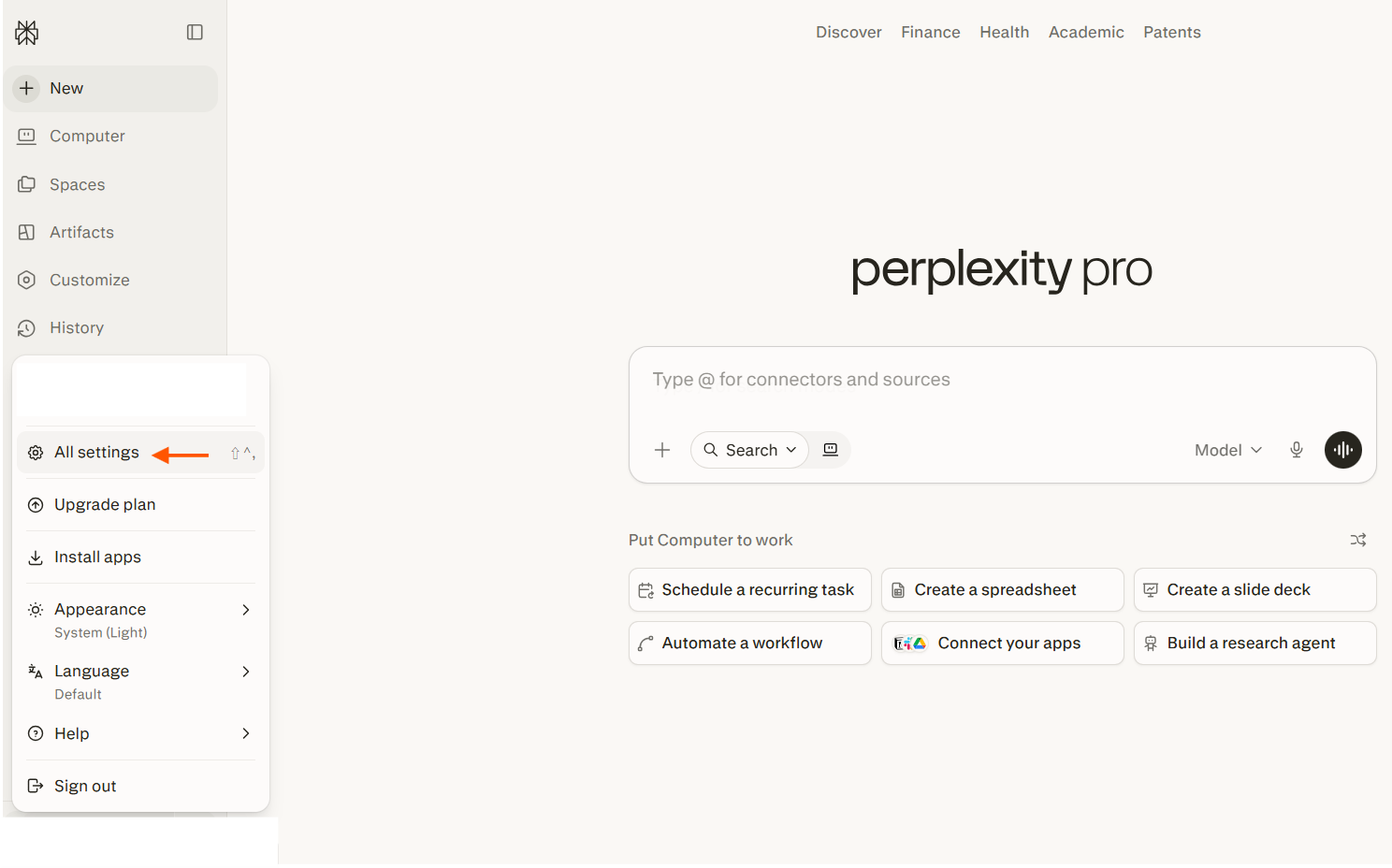
Step 1 — Open Perplexity Account – All Settings
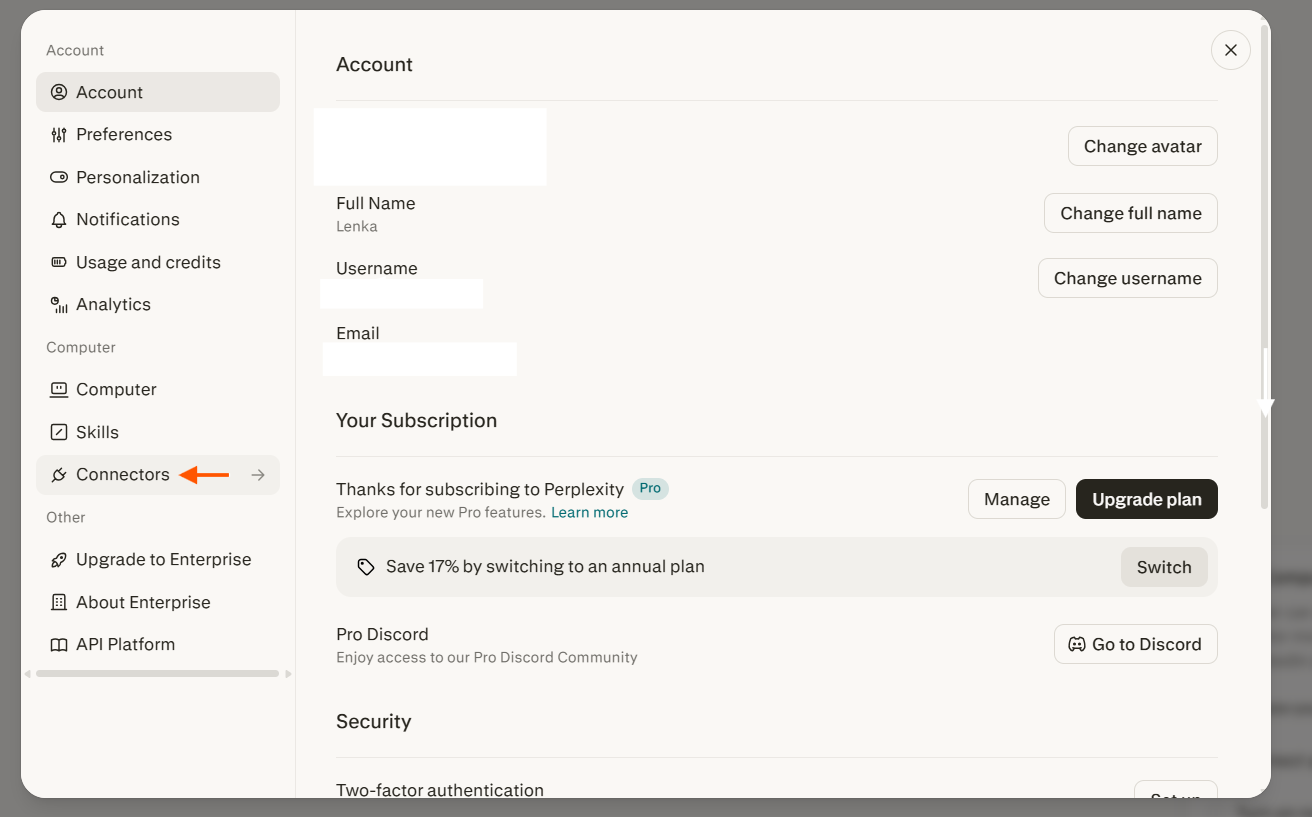
Step 2 — Open Connectors
Step 3 — Click on Custom Connector
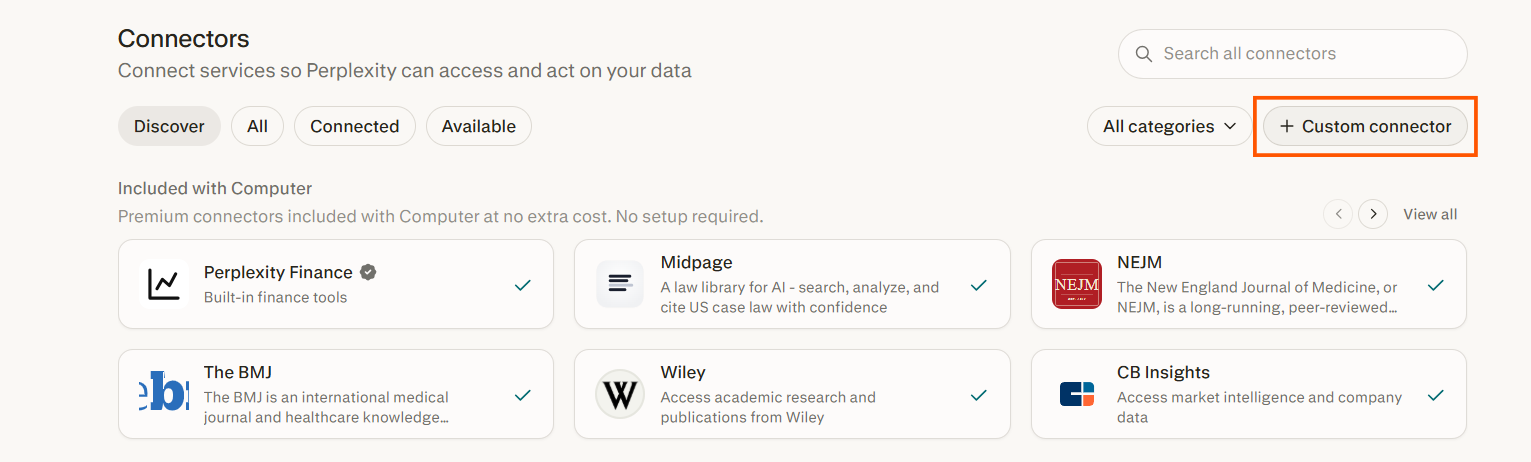
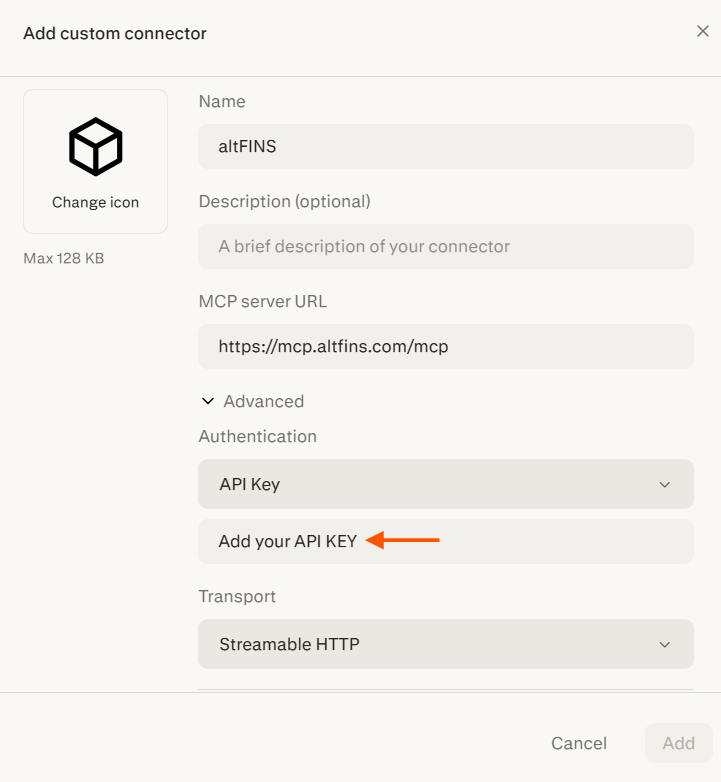
Step 4 — Fill in all information
Name: altFINS
MCP server ULR: https://mcp.altfins.com/mcp
Advanced: choose API KEY
Add you API KEY
Streamable HTTP
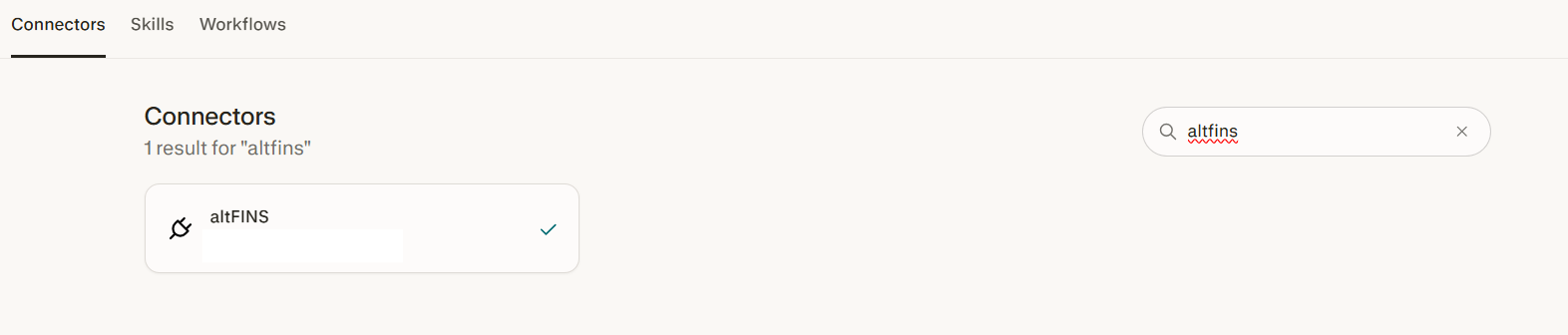
Step 5 — Search for altFINS and check out the connection
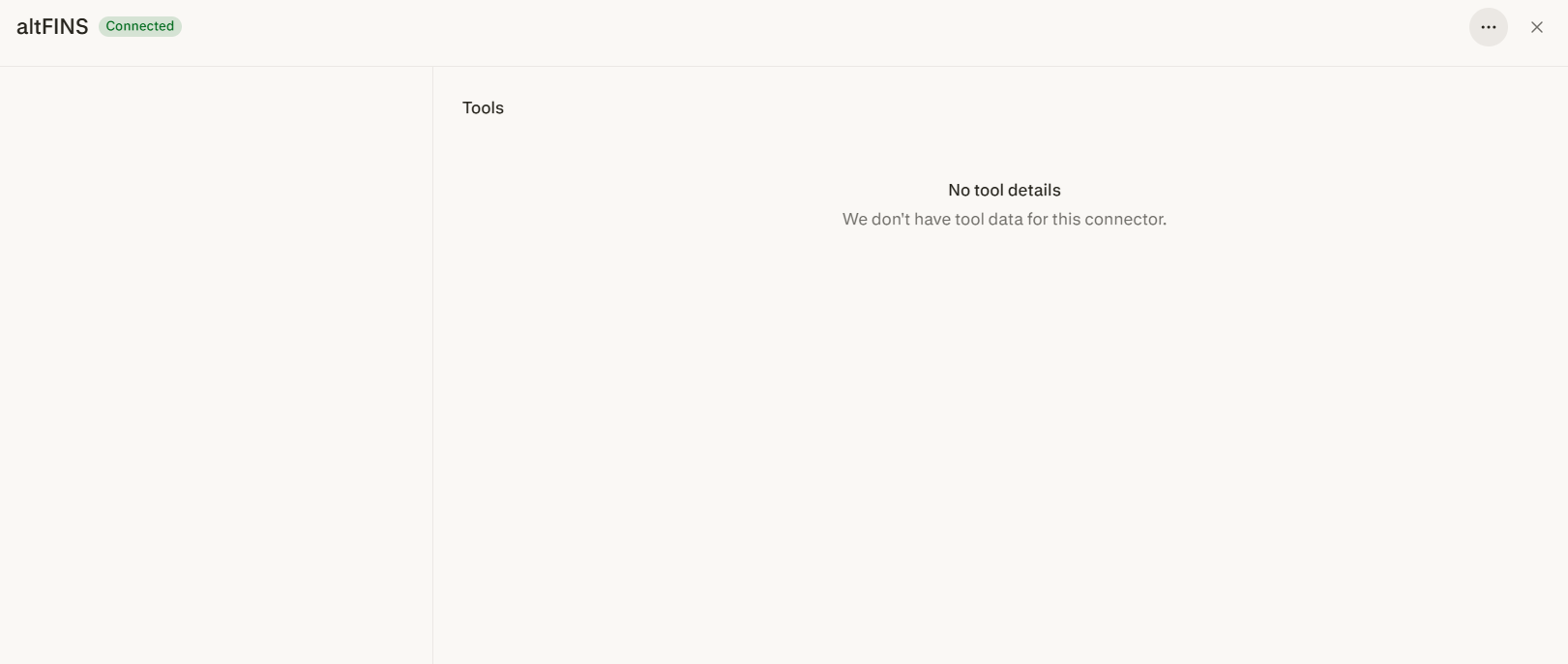
Step 6 — Tag the altFINS connector in the chat.
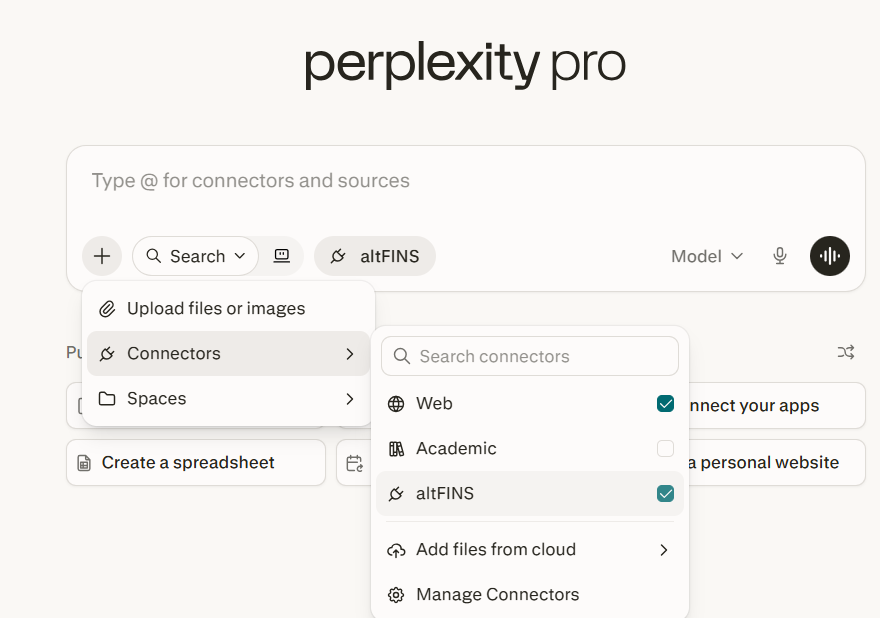
Step 7 — Ask “Which altFINS MCP tools do you have access to?”
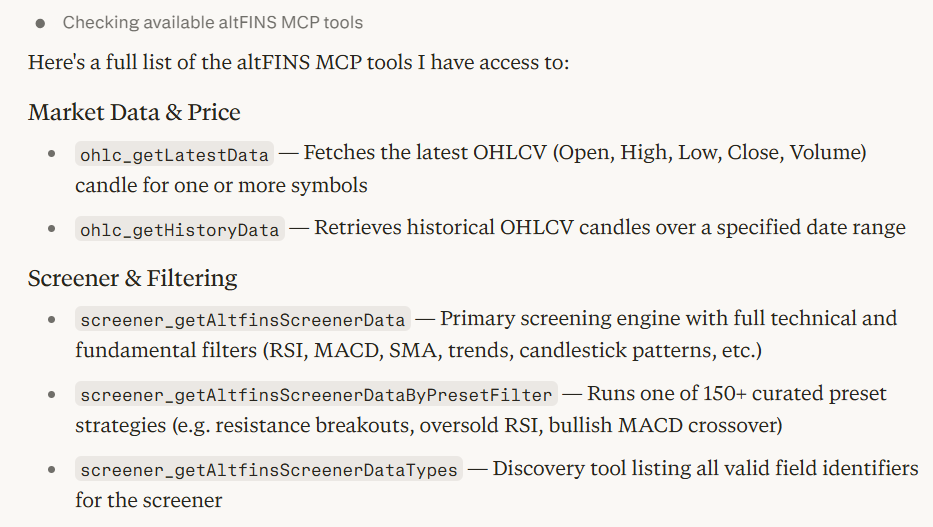
Step 8 — Start asking Perplexity about data, signals, trade ideas…