altFINS MCP Server
1. What is the altFINS MCP Server?
The altFINS MCP Server provides a secure, structured, and AI-friendly interface to powerful crypto analytics, market data, news, and portfolio information via the Model Context Protocol (MCP) — an open standard for connecting AI models to external tools and data sources.
By connecting your favorite AI client to the altFINS MCP Server, you get direct access to real-time crypto market data, technical analysis, screener results, historical indicators, news, calendar events, and portfolio data — all through natural language conversations.
Key benefits:
- Ask questions in plain English and get live market data — no coding required
- Works with multiple AI clients: Claude Desktop, VS Code (GitHub Copilot), Microsoft Copilot Studio, and more
- Professional-grade crypto analytics powered by altFINS data — no AI hallucinations
- Build advanced AI-driven trading tools, dashboards, and automation workflows with minimal integration effort
2. How to Connect to the MCP Server
2.1 MCP Server Endpoint
The MCP server is available at:
https://mcp.altfins.com/mcp
This endpoint supports Streamable HTTP MCP transport.
2.2 Authentication
The MCP Server supports two ways to authenticate:
- Sign in with your altFINS account (OAuth) — used by the altFINS connector in Claude. You sign in and approve access once; no API key is needed. See 3.1 Claude.
- API key — used by every other client (Claude Desktop config file, Claude Code, VS Code, Copilot Studio, your own code), as described below.
API key authentication header:
X-Api-Key: YOUR_ALTFINS_API_KEY
- The API key must be sent with every MCP request.
- Requests without a valid API key will be rejected.
- The API key identifies your altFINS account and defines your access scope.
How to get your API key: Visit How to Create an altFINS API Key for a step-by-step guide.
2.3 Available MCP Tools
Once connected, your AI client will automatically discover the following tools:
| Tool | Description |
|---|---|
| Screener | Screen and filter thousands of crypto assets by technical indicators (RSI, MACD, SMA), trends, candlestick patterns, categories, exchanges, and more |
| Technical Analysis | Get curated trade setups and professional analyst views for specific coins |
| OHLCV Data | Retrieve historical and latest price candle data (Open, High, Low, Close, Volume) |
| Analytics History | Access historical time-series data for any technical indicator or financial metric |
| Signal Feed | Real-time altFINS signals that help you spot new trade opportunities without scanning the market manually |
| News | Search and filter crypto news articles by coin, keyword, source, and date |
| Calendar Events | Find upcoming crypto events — AMAs, exchange listings, airdrops, partnerships, conferences |
| Portfolio | View your connected crypto portfolio holdings across exchanges and wallets |
| Symbols | Look up the symbols (coin tickers) altFINS supports and the contract address of each token per blockchain |
2.4 Requirements and Usage Limits
What you need:
- An altFINS account. Access to the MCP Server is included in the altFINS API plans, including the free Basic plan — see plans and pricing.
- For the Claude connector: a Claude account (claude.ai on the web, Claude Desktop, or the Claude mobile app). On Claude Team and Enterprise plans, an Owner may need to allow the connector for your organization first.
Credits and rate limits:
- Tool calls use credits from your plan's monthly credit allowance, the same credits as the REST API. Most tool calls use 1 credit; the Signal Feed tool uses 10 credits per call.
- The free Basic plan includes 1,000 credits per month; paid plans include more. Your plan's rate limit also applies.
- One question to your AI assistant can lead to several tool calls — for example, a full technical analysis of a coin may call the technical analysis, screener, and analytics tools.
What the connector can and can't do:
- All tools are read-only: they read market data and, when you ask about "my" data, your own portfolio and watchlist.
- The connector cannot place trades, move funds, create alerts, or change anything in your altFINS account.
3. Connect altFINS MCP Server to Your AI Client
3.1 Claude (Connectors Directory)
The altFINS connector is currently in review for the Claude Connectors Directory. Until it's listed, connect Claude with an API key as described in 3.2 Claude Desktop with an API Key, or use Claude Code as shown at the end of this section.
The easiest way to use altFINS in Claude is the official altFINS connector. You sign in with your altFINS account — there is no API key to copy and no configuration file to edit. Once connected, the connector works in Claude on the web, in Claude Desktop, and in the Claude mobile app.
Step 1. In Claude, open Customize → Connectors and search the directory for altFINS.
Step 2. Click Connect. Claude opens the altFINS sign-in page.
Step 3. Sign in with your altFINS account — email and password or Google sign-in, plus your second factor if you use two-factor authentication.
Step 4. Review the access request and click Approve. The page shows which application receives access (claude.ai) and what it can read. You are then returned to Claude, and altFINS shows as Connected.
Step 5. In a chat, click + → Connectors and make sure altFINS is turned on for that conversation. Then ask, for example:
- "Give me a complete technical analysis of SOL"
- "Find coins with RSI below 30 in an uptrend"
- "What are the latest news and upcoming events for ETH?"
All altFINS tools are read-only, so Claude can use them without changing anything in your account.
Good to know:
- Staying connected: Claude refreshes access automatically. If you don't use the connector for 30 days, the connection expires and you simply click Connect again.
- Disconnecting: open Customize → Connectors → altFINS and disconnect. Claude can no longer read your altFINS data; an access token that was already issued stops working within 1 hour.
- Claude Code: the connector sign-in is used by Claude on the web, Desktop, and mobile. In Claude Code, connect with your API key instead:
claude mcp add --transport http altfins https://mcp.altfins.com/mcp --header "X-Api-Key: YOUR_ALTFINS_API_KEY"
3.2 Claude Desktop with an API Key
If you prefer to configure Claude Desktop yourself with an API key instead of the connector, you can add the server to its configuration file. Claude Desktop runs local MCP servers through stdio bridges; since the altFINS MCP Server is a remote HTTP server, we use the mcp-remote package as a bridge.
Prerequisites:
- Claude Desktop installed (Pro, Max, Team, or Enterprise plan required)
- Node.js installed (version 18 or later)
Step-by-step setup:
Step 1. Open Claude Desktop and go to Settings (gear icon) → Developer → Edit Config
This opens the claude_desktop_config.json file. The file is located at:
- macOS:
~/Library/Application Support/Claude/claude_desktop_config.json - Windows:
%APPDATA%\Claude\claude_desktop_config.json
Step 2. Add the altFINS MCP server configuration.
For Windows, paste the following into the config file:
{
  "mcpServers": {
    "altfins-mcp-server": {
      "command": "cmd",
      "args": [
        "/c",
        "npx",
        "mcp-remote",
        "https://mcp.altfins.com/mcp",
        "--header",
        "X-API-Key: ${API_KEY}"
      ],
      "env": {
        "API_KEY": "YOUR_ALTFINS_API_KEY"
      }
    }
  }
}
For macOS / Linux, paste the following:
{
  "mcpServers": {
    "altfins-mcp-server": {
      "command": "npx",
      "args": [
        "mcp-remote",
        "https://mcp.altfins.com/mcp",
        "--header",
        "X-API-Key: ${API_KEY}"
      ],
      "env": {
        "API_KEY": "YOUR_ALTFINS_API_KEY"
      }
    }
  }
}
Note: Replace
YOUR_ALTFINS_API_KEYwith your actual altFINS API key. The${API_KEY}in the args references the environment variable defined inenv, so the key is never hardcoded in the command line arguments directly.
Step 3. Save and close the config file.
Step 4. Completely quit and restart Claude Desktop (not just close the window — fully exit the application and reopen it).
Step 5. Look for the hammer icon (🔨) in the bottom-left of the chat input area. This confirms the MCP server is connected and tools are available.
Step 6. Start a new conversation and try asking a question, for example:
- "Give me a complete technical analysis of SOL"
- "Find coins with RSI below 30 and bullish MACD"
- "Show me the latest crypto news about Ethereum"
Claude will automatically use the altFINS MCP tools to fetch live data and answer your question.
Example: Claude Desktop with altFINS MCP Server
Here is a real example of asking Claude Desktop "Give me a complete technical analysis of SOL" — Claude automatically calls the altFINS MCP Server and returns a professional technical analysis with real-time data:
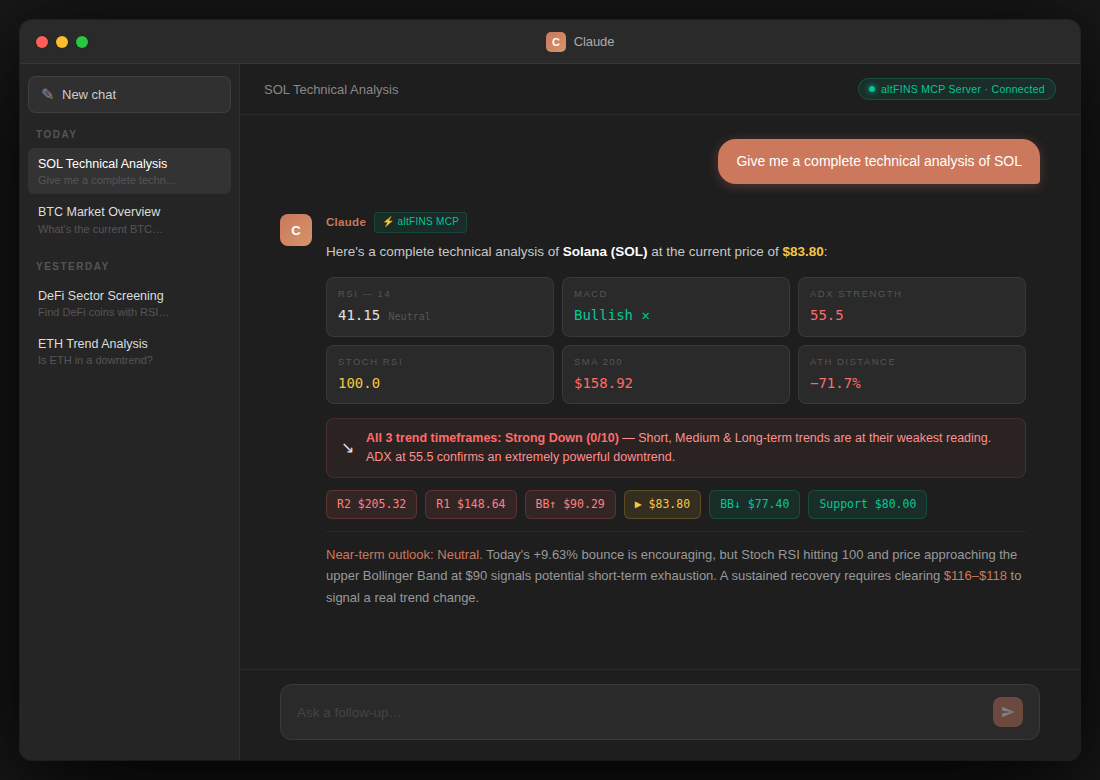 Claude Desktop using altFINS MCP Server to analyze SOL
And here is an example of the kind of rich, visual dashboard that can be generated from altFINS MCP data:
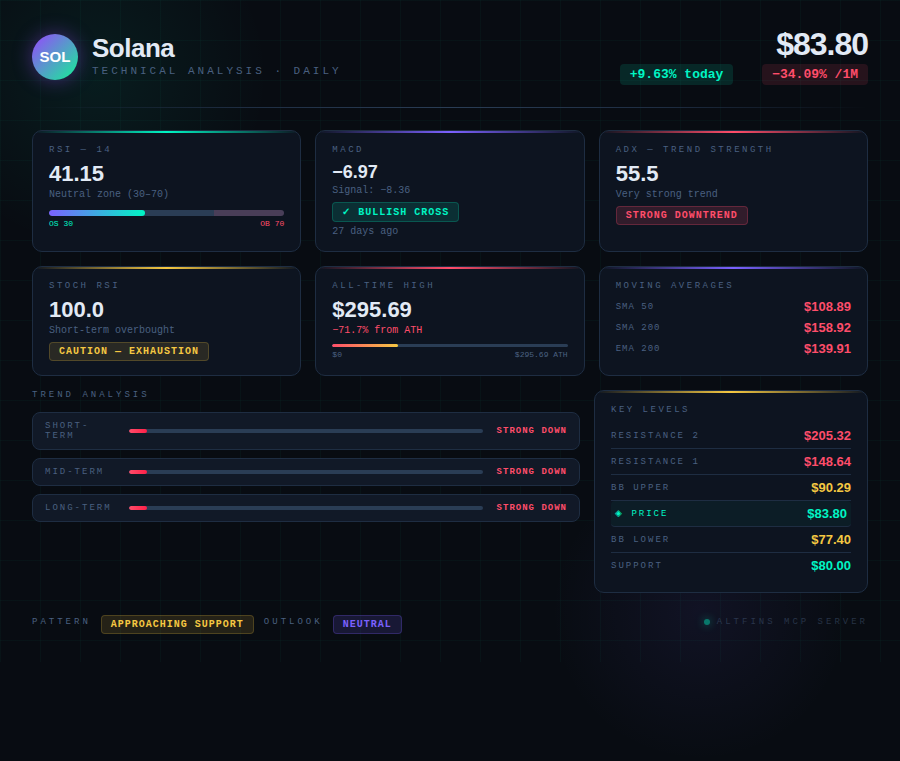 SOL Technical Analysis dashboard generated from altFINS MCP Server data
3.3 Visual Studio Code (GitHub Copilot)
VS Code supports remote MCP servers natively through GitHub Copilot's Agent Mode. No bridge package is needed — you can connect directly via HTTP.
Prerequisites:
- Visual Studio Code installed (latest version)
- GitHub Copilot extension installed and active (requires a GitHub Copilot subscription)
Step-by-step setup:
Step 1. Open VS Code.
Step 2. Open the Command Palette: press Ctrl+Shift+P (Windows/Linux) or Cmd+Shift+P (macOS).
Step 3. Type "MCP: Open User Configuration" and select it. This opens your mcp.json file.
Step 4. Add the altFINS MCP server configuration:
{
  "servers": {
    "altfins-mcp-server": {
      "type": "http",
      "url": "https://mcp.altfins.com/mcp",
      "headers": {
        "X-Api-Key": "YOUR_ALTFINS_API_KEY"
      }
    }
  }
}
Note: Replace
YOUR_ALTFINS_API_KEYwith your actual altFINS API key.
Security tip: To avoid storing your API key in plain text, you can use VS Code's secure input feature:
{
  "inputs": [
    {
      "type": "promptString",
      "id": "altfins-api-key",
      "description": "Enter your altFINS API Key",
      "password": true
    }
  ],
  "servers": {
    "altfins-mcp-server": {
      "type": "http",
      "url": "https://mcp.altfins.com/mcp",
      "headers": {
        "X-Api-Key": "${input:altfins-api-key}"
      }
    }
  }
}
With this setup, VS Code will securely prompt you for the API key each time the server starts.
Step 5. Save the mcp.json file.
Step 6. You should see a "Start" button appear in the file editor for your MCP server. Click it to launch the server. If prompted, confirm that you trust the server.
Step 7. Open the Copilot Chat panel: press Ctrl+Alt+I (Windows/Linux) or Ctrl+Cmd+I (macOS).
Step 8. Switch to Agent Mode using the dropdown at the top of the chat panel.
Step 9. Click the "Select Tools" icon (wrench/gear) to verify the altFINS MCP server tools are listed and enabled.
Step 10. Start asking questions! For example:
- "What are the top 10 coins by market cap with bullish momentum?"
- "Show me BTC's RSI history over the last 30 days"
- "Any upcoming events for SOL this week?"
GitHub Copilot will detect that it needs data from the altFINS MCP server and will ask you to confirm the tool call before executing it.
3.4 Microsoft Copilot Studio
Microsoft Copilot Studio has built-in support for connecting to remote MCP servers with API key authentication — no code or bridges required.
Prerequisites:
- Access to Copilot Studio (requires a Copilot Studio license)
- A Microsoft work or school account
- Your altFINS API key
Step-by-step setup:
Step 1. Go to copilotstudio.microsoft.com and sign in.
Step 2. Open an existing agent or create a new one.
Step 3. Navigate to the Tools tab in your agent.
Step 4. Click "Add a tool" → "New tool" → "Model Context Protocol".
Step 5. The MCP onboarding wizard appears. Fill in the following fields:
- Server name:
altFINS Crypto Analytics - Server description:
Provides real-time crypto market data, technical analysis, screener results, news, calendar events, historical indicators, and portfolio information from the altFINS platform. - Server URL:
https://mcp.altfins.com/mcp
Important: Write a clear, descriptive server description. The AI agent uses this text to decide when to call your MCP server during conversations.
Step 6. For Authentication, select "API Key".
Step 7. Configure the API key settings:
- Type: Select "Header"
- Parameter name:
X-Api-Key - Parameter label:
altFINS API Key
Step 8. Click "Create".
Step 9. You will be prompted to "Create Connection". This is where you enter your actual API key value:
- Paste your altFINS API key (e.g.,
afns_sk_1.xxxxxxxxxxxx) - Click "Create"
Step 10. The "Add tool" dialog appears. You will see the list of tools discovered from the altFINS MCP server (screener, technical analysis, news, etc.). Enable the tools you want your agent to use.
Step 11. Click "Add" to finalize.
Step 12. Test your agent by opening a conversation and asking:
- "What is the current technical outlook for BTC?"
- "Find AI coins with strong momentum on the daily timeframe"
- "Show me the latest crypto news about Solana"
Your Copilot Studio agent will now automatically use the altFINS MCP tools to answer crypto-related questions with real-time data.
4. Programmatic Access (Code Examples)
For developers who want to connect to the altFINS MCP Server programmatically, we provide ready-to-use code examples in Python, TypeScript, and Java (LangChain4j).
👉 View Code Examples on GitHub
The examples cover:
- Connecting to the MCP server with API key authentication
- Listing available tools
- Calling the screener, technical analysis, news, OHLCV, and calendar tools
- Building an AI agent with LangChain4j that automatically uses altFINS MCP tools
5. Example Business Use Cases
Here are practical examples showing how AI agents can leverage the altFINS MCP Server.
5.1 AI Crypto Market Analyst Assistant
- Goal: Enable an AI assistant to answer professional-grade crypto market questions using real altFINS analytics instead of hallucinations.
- Example prompts:
- "What is the current technical outlook for BTC?"
- "Is ETH bullish or bearish right now?"
- "Give me a complete technical analysis of SOL"
5.2 Automated Crypto Trading Signal Screening
- Goal: Automatically screen the market for assets matching predefined technical or fundamental conditions.
- Example prompts:
- "Find coins with bullish momentum and strong trend on the daily timeframe"
- "Show me AI coins on Binance with RSI below 30"
- "Which assets just had a golden cross (SMA50 crossing above SMA200)?"
5.3 Portfolio-Aware AI Investment Assistant
- Goal: Allow AI to provide personalized insights based on your actual crypto portfolio.
- Example prompts:
- "Analyze my portfolio and tell me which assets look technically weak"
- "What is the total value of my holdings?"
- "Are there any upcoming events for coins in my portfolio?"
5.4 AI-Driven Crypto News & Event Intelligence
- Goal: Automatically monitor news and calendar events and explain their market relevance.
- Example prompts:
- "Are there any important events or news for SOL this week?"
- "What are the latest crypto news about DeFi?"
- "Show me hot trending events in the crypto market"
5.5 Historical Indicator Backtesting & Research
- Goal: Support quantitative analysis and strategy validation using historical indicator data.
- Example prompts:
- "Show me BTC's RSI14 history over the last 30 days"
- "How has ETH's market cap changed this year?"
- "Compare SMA50 and SMA200 trends for ADA over the last 90 days"
5.6 AI-Enhanced Natural Language Screener
- Goal: Let users describe screener filters in natural language instead of configuring complex filters manually.
- Example prompts:
- "Show me mid-cap coins with strong momentum and bullish MACD"
- "Find Solana ecosystem meme coins that are near their all-time high"
- "Which DeFi tokens have the highest 24h volume and are in an uptrend?"
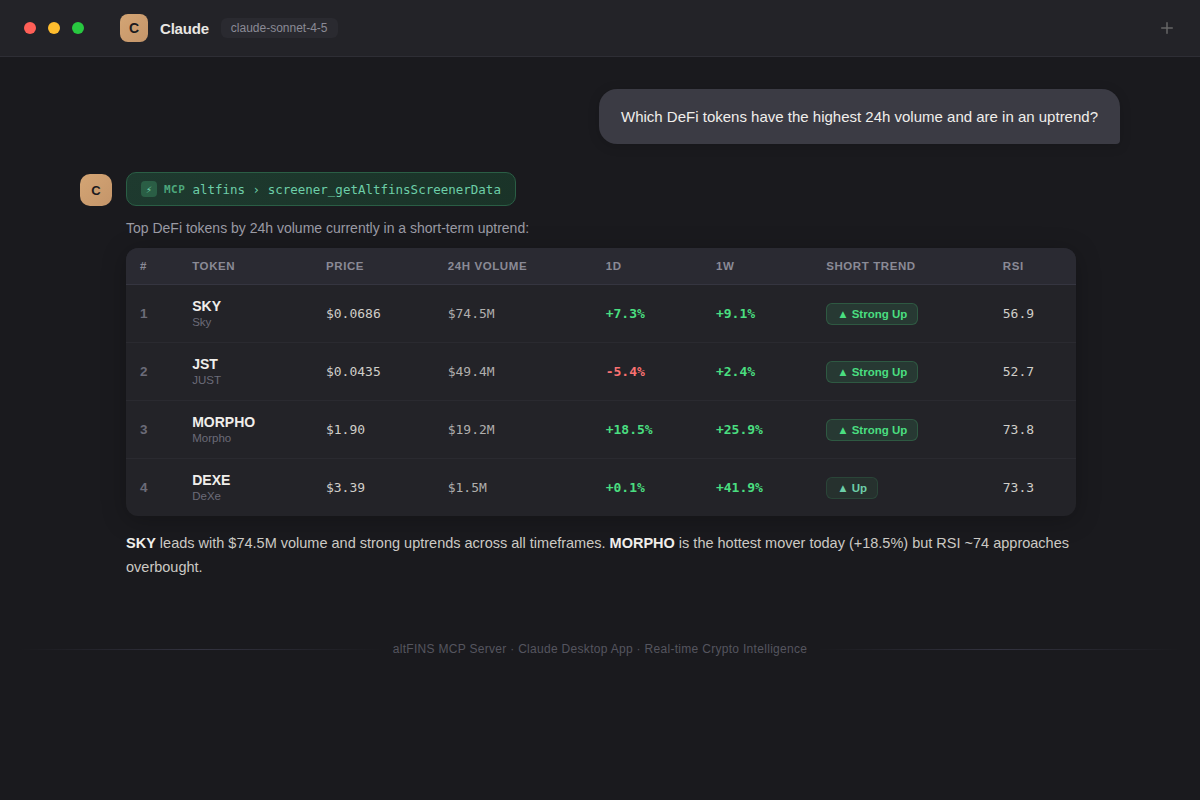 Real chat examples (MCP)
6. Platform Compatibility Summary
| AI Client | Connection Method | API Key Auth | Setup Complexity |
|---|---|---|---|
| Claude (web, Desktop, mobile) | altFINS connector from the Connectors Directory | Not needed — sign in with your altFINS account | Easiest — no configuration |
| Claude Code | Native HTTP (claude mcp add) | ✅ via --header flag | Easy — one command |
| Claude Desktop (config file) | stdio bridge via mcp-remote | ✅ via --header flag | Medium — requires Node.js |
| VS Code (GitHub Copilot) | Native HTTP | ✅ via headers in config | Easy — no extra tools needed |
| Microsoft Copilot Studio | Native MCP wizard | ✅ built-in Header/Query option | Easy — no code required |
| Claude API | Native mcp_servers parameter | ✅ via authorization_token | For developers |
| Python / TypeScript / Java | MCP SDK | ✅ via custom headers | For developers — see examples |
7. Troubleshooting
Claude says it couldn't connect, or the sign-in doesn't finish
- Make sure you sign in with your altFINS account (the one you use on altfins.com), and complete the two-factor step if you use it.
- Allow pop-ups for claude.ai — the sign-in opens in a new window.
- Start again from Customize → Connectors → altFINS → Connect. If it still fails, contact support with the time you tried.
Claude doesn't use altFINS when I ask a question
- In the chat, open + → Connectors and check that altFINS is turned on for that conversation.
- Mention altFINS or the data you want, for example "Using altFINS, show me the RSI of BTC".
"The '…' tool is not available on this altFINS account"
- Your altFINS plan doesn't include access to the MCP Server. Compare the plans and upgrade to use the connector.
"… this altFINS account has used all of its monthly API credits"
- Your plan's monthly credits are used up. They renew at the start of the next monthly period, or you can upgrade your plan for more.
"… sent more requests per minute than its plan allows"
- You reached your plan's rate limit. Wait a minute and ask again.
"… could not complete this request because of a problem on the altFINS side … error ID: …"
- Something went wrong on our side. Try again in a minute; if it keeps failing, send us the error ID — it lets us find your request in our logs.
"Invalid value for '…'"
- A parameter was rejected; the message says which values are allowed. The assistant normally corrects itself and retries. If it doesn't, rephrase the request — for example, use the coin's ticker (
BTC) instead of its name.
The answer says there is no data for a coin
- Use the coin's ticker symbol. You can ask "Which symbol does altFINS use for Solana?" to look it up.
- Curated trade setups exist only for the coins our analysts cover; for other coins, ask for indicators such as RSI, MACD, and trend, which are available for 2,000+ assets.
The connector stopped working after a while
- A connection that isn't used for 30 days expires. Reconnect from Customize → Connectors → altFINS.
API key clients (Claude Desktop config, Claude Code, VS Code, Copilot Studio) get "401 Unauthorized"
- Check that the header is named
X-Api-Keyand contains a valid, active key — see How to Create an altFINS API Key. - For Claude Desktop, restart the app after editing
claude_desktop_config.json, and make sure Node.js is installed.
Still stuck? See Support — we're happy to help.